Hello Fam 
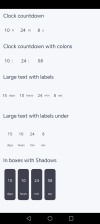
If you're looking to add modern, eye-catching countdown timers to your projects without battling complex UI layouts, I'm excited to share the B4XDaisyCountdown component!
This is a cross-platform custom view inspired by the popular DaisyUI and Tailwind CSS frameworks. It makes building gorgeous, semantic UI timers incredibly easy. The component is broken down into two main classes:


Simple Usage Example (Programmatic): Here is a quick snippet demonstrating how to initialize a countdown timer and update the seconds using a timer tick, just like in the included B4XPageCountdown example:
Let me know what you think and feel free to ask questions below! Happy coding!
Related Content
 www.b4x.com
If you're looking to add modern, eye-catching countdown timers to your projects without battling complex UI layouts, I'm excited to share the B4XDaisyCountdown component!
This is a cross-platform custom view inspired by the popular DaisyUI and Tailwind CSS frameworks. It makes building gorgeous, semantic UI timers incredibly easy. The component is broken down into two main classes:
- B4XDaisyCountdown: The main container that handles the layout orientation (horizontal or vertical), gap spacing (e.g., gap-2, gap-4), padding, background colors (base-100, neutral, etc.), rounded corners, and shadow effects.
- B4XDaisyCountdownItem: The individual time segments (Days, Hours, Minutes, Seconds). These support custom values (0-999), separators (like ":"), typography tokens (text-sm up to text-9xl), label positioning (RIGHT or BOTTOM), and semantic variants (primary, secondary, accent, info, success, warning, error).
Simple Usage Example (Programmatic): Here is a quick snippet demonstrating how to initialize a countdown timer and update the seconds using a timer tick, just like in the included B4XPageCountdown example:
B4X:
Sub Class_Globals
    Private Root As B4XView
    Private xui As XUI
    Private timer1 As Timer
    Private seconds As Int = 59

    ' Component variables
    Private myCountdown As B4XDaisyCountdown
    Private secItem As B4XDaisyCountdownItem
End Sub

Private Sub B4XPage_Created (Root1 As B4XView)
    Root = Root1
    Root.Color = xui.Color_RGB(245, 247, 250) ' Light background [6]

    ' 1. Initialize the main countdown container
    myCountdown.Initialize(Me, "myCountdown") [3]
    ' Set properties like orientation and gap spacing
    myCountdown.setOrientation("horizontal") [7]
    myCountdown.setGap("gap-4") [7]
    Dim pnlCountdown As B4XView = myCountdown.CreateView(300dip, 100dip) [8]
    Root.AddView(pnlCountdown, 20dip, 50dip, 300dip, 100dip)

    ' 2. Initialize a seconds item
    secItem.Initialize(Me, "secItem") [9]
    secItem.Value = seconds [10]
    secItem.Digits = 2 ' Force 2-digit format (e.g. 09) [2]
    secItem.Label = "sec" [2]
    secItem.LabelPosition = "BOTTOM" [2]
    secItem.Variant = "primary" ' Use semantic DaisyUI colors [2]
    secItem.TextSize = "text-4xl" [2]

    ' Add the item to the countdown container
    myCountdown.AddItem(secItem) [11]

    ' 3. Start the timer to update the value
    timer1.Initialize("timer1", 1000)
    timer1.Enabled = True
End Sub

Private Sub timer1_Tick
    seconds = seconds - 1
    If seconds < 0 Then seconds = 59

    ' Update the item's value dynamically
    secItem.Value = seconds [10]
End Sub
Let me know what you think and feel free to ask questions below! Happy coding!
Related Content
[B4X] [B4A] B4XDaisy UI Kit - Native Components inspired by DaisyUI & Tailwind
Hi Fam Disclaimer: The [B4A] in the title? This b4xlib has only been tested with B4A, thus the title. I have not checked the cross-platform functionality as its on the roadmap when I finish the complete library. The b4xlib is still in ALPHA stage, things might change, apis might break and...
www.b4x.com