Change the position of text and image of a button

lhbrito

Member
Licensed User
Longtime User
Hello,

In my application I want to change the appearance of buttons if the application is in landscape or portrait mode.

I'm using "Designer Scripts" to change the position and size of the buttons (it's ok), but I can not change the following attributes:

- Alignment of the image:
if landscape, I want to make TOP + CENTER_HORIZONTAL
if portrait, I want to make LEFT CENTER_VERTICAL

- Text alignment:
if landscape, I want to make BOTTOM + CENTER_HORIZONTAL
if portrait, I want to make RIGHT + CENTER_VERTICAL

Can I change with "Designer scipts"? How i do?

Or, what is the code that I can use to change at runtime?

Ps: The button is configured as "Statelistr Drawable" then need to change the position of the 3 states (enabled, disabled, clicked)

Thanks!
 

grant1842

Active Member
Licensed User
Longtime User
In the activity code, you can check to see if the Activity's width is greater than its height. If so, it's in landscape, else it's in portrait.
 
Last edited:
Upvote 0

lhbrito

Member
Licensed User
Longtime User
Hello,

Thanks, but my question was not how to detect which mode is being used ...

What I'm not able to do is change the properties of buttonview depending on the orientation that is used.

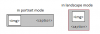
The idea is that in landscape mode the button is "square" in portrait mode and is "rectangular".

Tks!
 
Upvote 0

lhbrito

Member
Licensed User
Longtime User
I mounted an image to show what I am wanting to do with buttonview ..

Tks!
 

Attachments

  • Sample.png
    Sample.png
    2.8 KB · Views: 683
Upvote 0

grant1842

Active Member
Licensed User
Longtime User
It looks like the only Gravity types supported for the image in a button are Fill, Center, and Top Left.

You can achieve this using a panel to hold an ImageView and Button, then change the Views' size and position depending on the orientation.
 
Last edited:
Upvote 0

lhbrito

Member
Licensed User
Longtime User
Yes, the IDE's only these options, but reading the documentation for the information via code can also use: LEFT, RIGHT, BOTTOM, TOP, CENTER, CENTER_HORIZONTAL, CENTER_VERTICAL, ...

And combines them, eg:

B4X:
ButtonView1.Gravity =  Gravity.TOP + Gravity.CENTER_HORIZONTAL

But the problem is that the above code only changes the text, the image that is inserted into the button I do not know how to access the property "Gravity" ...

ps: But I would prefer it to be done via Designer Scripts ..
 
Upvote 0

lhbrito

Member
Licensed User
Longtime User
Hi Erel! thanks for the correct code.

But the solution of two buttons, in the IDE I can not set gravity for the image to "TOP + CENTER_H" or "LEFT + CENTER_V".

In the IDE is supported only for "Fill, center and Top Left". How to change at runtime?

But, in case I use only one button, think it would work something like:

B4X:
Sub Activity_Create(FirstTime As Boolean)
   'Do not forget to load the layout file created with the visual designer. For example:
   'Activity.LoadLayout("Layout1")
   Dim bmpBackground As Bitmap
   Dim bdwBackground As BitmapDrawable
   
   Activity.LoadLayout("fTstButton")
   ' I know it would not work, but it is to illustrate what I wanted to do.
   bmpBackground.Initialize(btnTeste.Background) ' <== PROBLEM HERE!!!                                                                   
   bdwBackground.Initialize(bmpBackground)
   If Activity.Width>Activity.Height Then 
     ' Button is Square
     bdwBackground.Gravity = Bit.OR(Gravity.TOP,Gravity.CENTER_HORIZONTAL)
     btnTeste.Gravity      = Bit.OR(Gravity.BOTTOM,Gravity.CENTER_HORIZONTAL)
   Else 
     ' Button is Rectangular
     bdwBackground.Gravity = Bit.OR(Gravity.CENTER_VERTICAL,Gravity.LEFT)
     btnTeste.Gravity      = Bit.OR(Gravity.CENTER_VERTICAL,Gravity.RIGHT)   
   End If
   btnTeste.Background   = bdwBackground
End Sub

The problem is that I could not read the current image that is on the record button to the variable bmpBackground(like bitmap type):BangHead:

Any suggestions?
 
Last edited:
Upvote 0
Top