
B4A Library GSheet Library (integrate google sheets into your B4X apps easily)

Gsheet

Author:
Fernando Arevalo
Version: 1.0

Functions:
  • Process_Globals As String
B4A, B4I
  • Initialize (ClientId As String)
B4J
  • Initialize(ClientId As String,ClientSecret As String)
B4X
  • SpreadsheetsId As String
    The ID of your document. This is the big long aplha-numeric code in the middle of the document's URL.
  • Sheets_name As String
    Name of the sheet we are going to work on
  • Sub delete(id As Int)
    id: row number to delete
  • Updatesheet(id As String, l As List)
    id: row number to Update and l: list of new items
  • UpdateSheet_range(range As String, value As String)
    range: position of the value to be updated example: "A2". value: new value
  • insert_list(l As List)
    l: list of new items, these items will be added in the next empty row( if a list is created with the total or partial elements of a database it will be added as a single query immediately to your sheet)


Gsheetplus

Author:
Fernando Arevalo
Version: 1.0

Functions:
  • Process_Globals As String
B4A, B4I
  • Initialize (ClientId As String)
B4J
  • Initialize(ClientId As String,ClientSecret As String)
B4X
  • SpreadsheetsId As String
    The ID of your document. This is the big long aplha-numeric code in the middle of the document's URL.
  • Sheets_name As String
    Name of the sheet we are going to work on
  • Sub delete(id As Int)
    id: row number to delete
  • Updatesheet(id As String, l As List)
    id: row number to Update and l: list of new items
  • UpdateSheet_range(range As String, value As String)
    range: position of the value to be updated example: "A2". value: new value
  • insert_list(l As List)
    l: list of new items, these items will be added in the next empty row( if a list is created with the total or partial elements of a database it will be added as a single query immediately to your sheet)
  • copytodrive(title As String,sheetcopy As String)
    creates a copy in the drive of the account with which you enter a selected sheet you must define the name of the new spreadsheet (title) and the name of the sheet to copy (sheetcopy)
  • createtitle( l As List, sheetsname As String, fontsize As Int,bold As Boolean)
    l: list of titles, sheetsname: name of the sheet where the titles will be inserted
  • create_spreadsheets(title1 As String)
    title: name of the new spreadsheet
  • create_sheets(name_sheets As String,SpreadsheetId As String)
    name_sheets: name of the new sheet, SpreadsheetId:The ID of your document
  • deletesheet(sheetsname As String )
    name_sheets: name of the sheet for delete into spreadsheet
  • newspreadsheetsid As String
    allows to retrieve the id after creating a new spreadsheet or after backing up one in drive to save it in a database or variable it is recommended to put a wait of 2s before calling the value of this variable
  • newnamesheet As String
    allows you to retrieve the name of the new sheet created to save it in a database or variable it is recommended to wait for 2s before calling the value of this variable


NOTE:

This library is not free, because, it took a lot of time and gray hair to create all the methods and learn how the api works.
Please write GSheets or GSheetplus in the order description, thanks.


Thanks for your understanding. :)

This library depends the Google OAuth2 class:
follow the tutorial in this topic to create your project in google console developer, enable google dive and google sheets apis, make sure to add your package name to your project, and create an oauth screen.

Add this in your manifest:

manifest:
CreateResourceFromFile(Macro, FirebaseAnalytics.GooglePlayBase)

Read example for v4 api:
Read sheets:
Sub GetSheet
table1.ClearAll
    Dim j As HttpJob
    j.Initialize("", Me)
    j.Download("https://sheets.googleapis.com/v4/spreadsheets/17YACjfqxKHDCXM_N7Jnq9BC_KzzkEgXLKzHDwaIM5Zs/values/Example!A2:Z?key=xxxxxxxxxxxxxxxxxxxxxxxxx")
    Wait For (j) JobDone(j As HttpJob)
    If j.Success Then
        Dim parser As JSONParser
        parser.Initialize(j.GetString.Trim)
        Dim root As Map = parser.NextObject
        'Dim majorDimension As String = root.Get("majorDimension")
        Dim values As List = root.Get("values")
 
        For Each colvalues As List In values
 
  Dim id1 As Int = colvalues.Get("4")
            Dim create As String = colvalues.Get("3")
            Dim Telephone1 As Int = colvalues.Get("0")
            Dim Age1 As Int = colvalues.Get("2")
            Dim Name1 As String = colvalues.Get("1")
            If colvalues.Size > 0 Then
             table1.AddRow(Array As String(id1,Telephone1,Name1,Age1,create))
            End If
 
        Next
        Dim range As String = root.Get("range")
        Log(range)
    End If


    j.Release
End Sub

Read example with Gsheets
ReadGsheet Gsheets::
Sub GetSheet

 
    Table1..ClearAll
    s.GetSheet(Me)
    Wait For get_result(x As List)
 
    For Each col As Map In x
 
        Table1.AddRow(Array As String(col.Get("1"),col.Get("Téléphone"),col.Get("Name"),col.Get("Age"),col.Get("created")))
 
    Next
 
End Sub

Example connect:

Example connect:
#Region  Activity Attributes
    #FullScreen: false
    #IncludeTitle: FALSE
#End Region

Sub Process_Globals
    'These global variables will be declared once when the application starts.
    'These variables can be accessed from all modules.

End Sub

Sub Globals
    'These global variables will be redeclared each time the activity is created.
    'These variables can only be accessed from this module.

    Dim s As GSheets
    Private conect1 As Button
End Sub

Sub Activity_Create(FirstTime As Boolean)
    'Do not forget to load the layout file created with the visual designer. For example:
    s.Initialize(Me, "s")'your Clientid google developers console, activate google drive api and google sheets api
    s.Sheets_name = "Example"
    s.SpreadsheetsId = "1FHx-a_a4afTQ3L5hXJIOttCVaJNngO3113E-qqFOjbk"
    Activity.LoadLayout("sheets1")
 
End Sub

'Connect
Sub connect1_Click
    s.connect
End Sub

Sub Activity_Resume

s.oauth2.CallFromResume(Activity.GetStartingIntent)
 
End Sub


Advantages:
  • It is not linked to paying an external api
  • the google sheet api is totally free
  • You can integrate multiple apps into a single project in the google console
  • Easy to use and integrate
Download page:

Download Gsheetsplus:


Download Gsheets:


Important in the verification screen of your project in google cloud activate this permission:
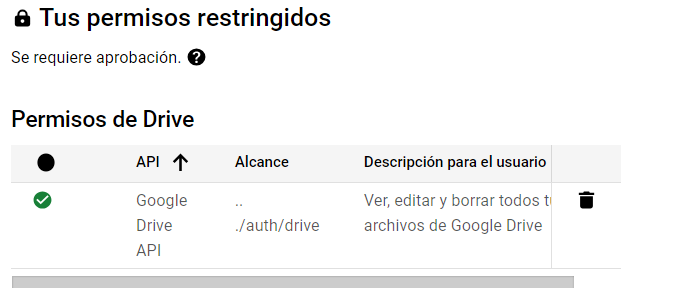
permiso.png


B4J Example google sheet:
Sheet for example


B4A Example google sheet:
Sheet for example
 

Attachments

  • ExampleB4J.zip
    3.8 KB · Views: 719
  • B4AGoogle Sheets.zip
    39.7 KB · Views: 122
Last edited:

fernando1987

Active Member
Licensed User
Longtime User

🚀 Version 9.6 Now Available!​


We're constantly improving! The new Version 9.6 of GsheetsPlus introduces two powerful methods in the GDrive class to make working with Google Drive files and folders even easier.


🔍 What’s New in This Version (GsheetsPlus only):​


✅ FindFolderIDByName(FolderName As String)
Easily retrieve the ID of a Google Drive folder by its name.


✅ FindFileIDByName(FileName As String)
Quickly locate the ID of any file by its name.


Both methods handle access tokens automatically and trigger custom events with the results, making them perfect for asynchronous integrations.

Example: Uploading PDF Files from Local Folders to Google Drive with Automatic Folder Handling for B4A:
Sub Globals
    'These global variables will be redeclared each time the activity is created.
    'These variables can only be accessed from this module.
    Dim gd As GDrive
    
End Sub

Sub Activity_Create(FirstTime As Boolean)
    'Do not forget to load the layout file created with the visual designer. For example:
    'Activity.LoadLayout("Layout1")
    
    gd.Initialize(Me,"gd","xxxxxxxxxxxxxxxx.apps.googleusercontent.com")
    
End Sub


Sub UploadPdf
    Dim n As Int = 0
    ProgressDialogShow2("Uploading PDF files", False)

    ' Find the root folder ID in Google Drive
    gd.FindFolderIDByName("myfolder")
    Wait For gd_FindFolderIDByName(success As Boolean, FolderIdRoot As String)
    If success = False Then
        Log("Root folder not found")
        Return
    Else
        ' Local root folder path
        Dim localRootFolder As String = File.Combine(File.DirRootExternal, "myfolder")
        If File.IsDirectory(localRootFolder, "") = False Then
            Log("Local folder does not exist: " & localRootFolder)
            Return
        End If

        ' List subfolders in the local root folder
        Dim content As List = File.ListFiles(localRootFolder)
        For Each item As String In content
            Dim fullSubPath As String = File.Combine(localRootFolder, item)
            If File.IsDirectory(fullSubPath, "") Then
                Log("Processing folder: " & item)

                ' Try to find the corresponding folder in Google Drive
                gd.FindFolderIDByName(item)
                Wait For gd_FindFolderIDByName(success As Boolean, Id As String)
                If success Then
                    ' Upload files to the existing Drive folder
                    Dim localFolder As String = File.Combine(File.DirRootExternal, "myfolder/" & item)
                    If File.IsDirectory(localFolder, "") = False Then
                        Log("Local folder not found: " & localFolder)
                        Return
                    End If

                    Dim files As List = File.ListFiles(localFolder)
                    For Each fileName As String In files
                        n = n + 1
                        ProgressDialogShow2("Uploading PDF files " & n & "/" & files.Size, False)
                        gd.UploadFile(fileName, localFolder, fileName, Id, "")
                        Wait For gd_FileUploaded(Success As Boolean, FileID As String)
                        If Success Then
                            File.Delete(localFolder, fileName)
                            Sleep(2000)
                        End If
                    Next
                Else
                    ' If folder doesn't exist in Drive, create it
                    gd.CreateFolder(item, FolderIdRoot)
                    Wait For gd_FolderCreated_success(FolderName As String, Id As String)

                    Dim localFolder As String = File.Combine(File.DirRootExternal, "myfolder/" & FolderName)
                    If File.IsDirectory(localFolder, "") = False Then
                        Log("Local folder not found: " & localFolder)
                        Return
                    End If

                    Dim files As List = File.ListFiles(localFolder)
                    For Each fileName As String In files
                        n = n + 1
                        ProgressDialogShow2("Uploading PDF files " & n & "/" & files.Size, False)
                        gd.UploadFile(fileName, localFolder, fileName, Id, "")
                        Wait For gd_FileUploaded(Success As Boolean, FileID As String)
                        If Success Then
                            File.Delete(localFolder, fileName)
                            Sleep(2000)
                        End If
                    Next
                End If
            End If
        Next
    End If

    ' Clean up: remove empty folders
    DeleteEmptyFolders(File.DirRootExternal & "/myfolder")
    ProgressDialogHide
End Sub

' Recursively delete empty folders
Sub DeleteEmptyFolders(Folder As String)
    Dim files As List = File.ListFiles(Folder)
    For Each name As String In files
        Dim fullPath As String = File.Combine(Folder, name)
        If File.IsDirectory(Folder, name) Then
            ' Recurse into subfolder
            DeleteEmptyFolders(fullPath)
            ' Check again after deleting subfolders
            Dim innerFiles As List = File.ListFiles(fullPath)
            If innerFiles.IsInitialized And innerFiles.Size = 0 Then
                File.Delete(Folder, name)
                Log("Folder deleted: " & fullPath)
            End If
        End If
    Next
End Sub


🎯 How to Get the Update:​


If you’ve previously purchased GsheetsPlus, just:


  1. Log in to your user panel at b4xapp.com
  2. Go to the "Recent Orders" section
  3. Download the latest version at no additional cost

It’s that simple!
 

fernando1987

Active Member
Licensed User
Longtime User

🚀 Version 9.7 Now Available!​

Hello everyone 👋


A new version of the GSheet Library is now available!
This update fully integrates with Google’s new authentication system using AuthorizationClient.


🚀 Main changes​


✅ AuthorizationClient Integration


  • The entire internal code has been updated to use the modern Google authentication flow.
  • The Client ID (e.g., 1xxxxxxx-xxxx.apps.googleusercontent.com) is no longer required.
  • Your app only needs to be registered in Google Cloud Console with matching package name and SHA1 (on Android).

✅ Retrieve account information
You can now easily access:


  • 📧 User email address
  • 🧑‍💼 Display name
  • 🖼️ Profile photo

✅ Logout and account switching


  • Full Sign-out support has been added, allowing users to switch accounts seamlessly.

✅ Simplified Initialize method


  • No need for credentials or client IDs.
  • Just ensure your app is properly registered in Google Cloud Console.


⚙️ Manifest update​


If you are updating from an older version, replace this section in your manifest:

B4X:
AddActivityText(Main,
  <intent-filter>
  <action android:name="android.intent.action.VIEW" />
  <category android:name="android.intent.category.DEFAULT" />
  <category android:name="android.intent.category.BROWSABLE" />
  <data android:scheme="$PACKAGE$" />
  </intent-filter>
)

with:

B4X:
CreateResourceFromFile(Macro, FirebaseAnalytics.GooglePlayBase)


💡 Simplified example – Get user info​

B4X:
Sub Process_Globals
    Private s As GSheets
End Sub

Sub Activity_Create(FirstTime As Boolean)
    s.Initialize(Me, "gs")
End Sub

Sub btnConnect_Click
    s.Connect
End Sub

Sub gs_Connect (Success As Boolean)
    If Success Then
        s.GetDriveUserInfo
        Wait For gs_AccountInfoAvailable (Success As Boolean, AccountInfo As UserInformation)
        If Success Then
            Log($"Name: ${AccountInfo.displayName}"$)
            Log($"Email: ${AccountInfo.emailAddress}"$)
            Log($"Photo: ${AccountInfo.photoLink}"$)
        End If
    End If
End Sub

Sub btnLogout_Click
    s.GoogleAndroidAuthorization.SignOut
    Wait For gs_SignOut (Success As Boolean)
    If Success Then Log("User signed out successfully")
End Sub


📅 Coming soon​


Updated examples will be released soon showing how to:


  • Sign in using AuthorizationClient
  • Retrieve user information
  • Read and write data from Google Sheets


💙 Thanks for supporting the project and helping the B4X community grow!
 

fernando1987

Active Member
Licensed User
Longtime User
📢 [UPDATE - GSheet Library (B4A Example)]


The B4A example project has been updated in the main thread 👉 GSheet Library - Integrate Google Sheets into your B4X apps easily


🔧 Important:
To compile and run the project successfully, you must change the package name to one that is registered in your Google Cloud Console, or create a new project and register that package name.
This ensures that the package name matches the SHA1 signature configured in your Google Cloud credentials, allowing proper authentication with the Google Sheets API.


📄 Google Sheet used by the example:
👉 Example Sheet


📦 Additional Library Used:
This example also makes use of the B4X XUI WobbleMenu - A Cross-Platform Animated Bottom Navigation library to provide a modern and animated bottom navigation bar.

1762111656414_100.PNG


1762111741019_100.PNG


1762111753514_100.PNG
 
Last edited:

fernando1987

Active Member
Licensed User
Longtime User
Aquí tienes un post listo para publicar en el foro de B4X anunciando la versión 9.8 de la librería GSheet, comentando claramente el nuevo diseño, soporte multilenguaje y estilo visual de la página por defecto en B4J.

Puedes copiarlo y pegarlo directamente en el hilo que indicaste.


🚀 GSheet Library – Version 9.8 Released​

Hello everyone 👋

I’m happy to announce GSheet Library v9.8, which includes bug fixes and an improved default connection success page for B4J.


✅ What’s new in v9.8?​

🔧 Bug fixes​

  • Minor internal issues were corrected to improve stability and reliability during the Google Sheets connection process.

🎨 New default success page (B4J)​

When the OAuth / Google Sheets connection is completed successfully in B4J, the library now shows a modern, clean, and responsive success page by default.

Highlights of the new design:

  • ✨ Modern UI with smooth animations (slide-in, scale, fade-in)
  • 🎯 Clear visual feedback with success icon and status message
  • 📱 Fully responsive (works on desktop and mobile browsers)
  • 🌙 Automatic dark mode support using prefers-color-scheme
  • 💎 Polished layout with cards, shadows, rounded corners, and gradients
  • 🧠 No user interaction required: the page simply informs the user that authentication is complete

🌍 Multi-language support (automatic)​

The page automatically detects the browser language and displays the message accordingly.

Currently supported languages:

  • 🇪🇸 Spanish (es)
  • 🇺🇸 English (en)
  • 🇵🇹 Portuguese (pt)
  • 🇫🇷 French (fr)
  • 🇩🇪 German (de)
  • 🇮🇹 Italian (it)
  • 🇨🇳 Chinese (zh)
If the language is not detected, it falls back safely to English.


🧩 User experience​

The page clearly informs the user:

  • That the connection was successful
  • That they can return to the application
  • That the browser tab can be safely closed
This makes the OAuth flow more professional, user-friendly, and production-ready, especially for desktop applications built with B4J.


📌 Notes​

  • The page is fully self-contained (HTML + CSS + JS)
  • No external JavaScript dependencies
  • Google Fonts used only for typography


Thanks to the B4X community for the continued support!😊
 

fernando1987

Active Member
Licensed User
Longtime User

🚀 GSheet Library v9.9​


More Powerful Than Ever! 🔥


Easily integrate Google Sheets into your B4X apps (B4A / B4i / B4J).


✨ What’s New in Version 9.9?​


🔹 GSHEETS NORMAL​


🔐 New: IsGoogleConnected (Silent Login Check)​


You can now verify whether the user already has a valid Google session without showing any UI 👌


Perfect for:


  • Silent login
  • Auto session validation on app start
  • Account status control

🧠 How It Works​


It uses AuthorizeMaybeAutomatic and validates:


  • Result.Success
  • Result.ResolutionNeeded = False

📌 Example Usage​


Check Google Connection:
Public Sub VerifyGoogleAccount
Wait For (s.GoogleAndroidAuthorization.IsGoogleConnected) Complete (Connected As Boolean)


If Connected Then
    s.GetDriveUserInfo
Else
 
End If


End Sub


🧹 Improved: ClearToken​


The token clearing method has been optimized using Google Identity’s ClearTokenRequest.


✔ Improved error handling
✔ Returns True/False
✔ Detailed logging


📌 Example​


Improved ClearToken:
    Try

    s.GoogleAndroidAuthorization.SignOut(s.MyToken)
    Wait For  gs_SignOut (Success As Boolean)

Log("token " & Success)
    Catch
        Log("Error al cerrar sesión Google")
    End Try


⭐ GSHEETS PLUS​


The PLUS version keeps growing 💎
Version 9.9 introduces one of the most requested features:


📊 Create Spreadsheet in Folder + Headers + Formatting​


🆕 New Method:​


CreateSpreadsheetInFolderWithTitles


✔ Creates the file in Google Drive
✔ Places it inside a specific folder
✔ Creates the sheet
✔ Automatically inserts header titles
✔ Triggers _CreateSpreadsheet_success event


📌 Full Example​


Create Spreadsheet with Titles:
Dim Headers As List = Array("ID", "Name", "Date", "Status")


Wait For (gs.CreateSpreadsheetInFolderWithTitles( _
"Sales Report", _
"YOUR_FOLDER_ID", _
"Sheet1", _
Headers)) Complete (NewId As String)


If NewId <> "" Then
Log("Spreadsheet created successfully: " & NewId)
End If


📌 Creation Event​


Spreadsheet Created Event:
Sub EventName_CreateSpreadsheet_success(Success As Boolean, NewId As String)
If Success Then
Log("File created with ID: " & NewId)
End If
End Sub


🔥 THE MOST POWERFUL FEATURE: QUERYs​


Version 9.9 significantly enhances dynamic Query handling.


Now you can:


✔ Filter data
✔ Sort results
✔ Limit rows
✔ Perform advanced searches
✔ Generate dynamic reports


📌 Example: Filter by Status​


Query with Filter:
Dim Query As String = "SELECT * WHERE C = 'Active' ORDER BY A DESC"


Wait For (gs.QuerySheet(SpreadsheetId, "Sheet1", Query)) Complete (Result As List)


For Each row() As Object In Result
Log(row)
Next


📌 Example: Limit Results​


Query with Limit:
Dim Query As String = "SELECT A,B,C LIMIT 10"


Wait For (gs.QuerySheet(SpreadsheetId, "Sheet1", Query)) Complete (Result As List)


📌 Example: Advanced Search​


Advanced Search Query:
Dim Name As String = "Carlos"
Dim Query As String = $"SELECT * WHERE B CONTAINS '${Name}'"$


Wait For (gs.QuerySheet(SpreadsheetId, "Sheet1", Query)) Complete (Result As List)


💡 Why QUERYs Matter​


Because they transform Google Sheets into a serverless cloud database.


With this you can:


  • Build dashboards
  • Generate real-time reports
  • Validate users
  • Filter data by permissions
  • Create complete admin systems

All without your own backend 🔥


📊 NEW – Spreadsheet Capacity & Safety Analysis (v9.9)​


One of the most important additions in version 9.9 is the new:


🔍 CheckSpreadsheetCapacity​


This feature analyzes the real cell usage of your spreadsheet and calculates:


  • ✅ Total cells currently used
  • ✅ Total rows (excluding header row)
  • ✅ Real column width detected
  • ✅ Maximum possible rows based on current structure
  • ✅ Remaining rows before reaching Google’s limit
  • ✅ Percentage used
  • ✅ Safety status (Safe / Warning)


🚨 Why This Is Extremely Important​


Google Sheets has a hard limit of 10,000,000 cells per spreadsheet.


If your system continuously writes data (logs, inspections, reports, etc.), your file will eventually stop accepting new rows.


With this new method you can:


  • Monitor capacity in real time
  • Prevent system crashes
  • Automatically warn users
  • Rotate spreadsheets before reaching the limit
  • Build enterprise-level reliability

This turns your Sheets integration into a production-ready solution.


🧠 How It Works (Step-by-Step)​


1️⃣ Authorizes the request
2️⃣ Loops through each sheet you provide
3️⃣ Downloads only A1:ZZ using filtered fields for maximum speed
4️⃣ Detects:


  • Real number of rows
  • Real number of columns with data
    5️⃣ Calculates:
  • Total used cells
  • Percentage used
  • Maximum possible rows
  • Remaining rows
    6️⃣ Determines safety:
  • Safe if usage < 90%
    7️⃣ Triggers event:


Capacity Result Event:
EventName_CapacityResult(Success As Boolean, Result As GS_BookStatus)


📌 Example Usage​


Check Spreadsheet Capacity Example:
'Check capacity for specific sheets inside the spreadsheet
gs.CheckSpreadsheetCapacity("SPREADSHEET_ID", Array As String("inspecciones"))


📌 Capacity Result Event​


Capacity Result Event:
Sub gs_CapacityResult(Success As Boolean, Result As GS_BookStatus)


If Success Then
   
    Log("Total Cells Used: " & Result.TotalCellsUsed)
    Log("Rows Count: " & Result.RowsCount)
    Log("Columns Detected: " & Result.ColumnsCount)
    Log("Usage Percentage: " & Result.PercentageUsed & "%")
    Log("Max Rows Possible: " & Result.MaxRowsPossible)
    Log("Rows Remaining (Approx): " & Result.RowsRemainingApprox)
   
    If Result.IsSafe Then
        Log("Spreadsheet is SAFE")
    Else
        Log("WARNING: Spreadsheet approaching limit!")
    End If
   
Else
    Log("Error analyzing spreadsheet capacity")
End If


End Sub


📦 What Is GS_BookStatus?​


The returned object contains:


PropertyDescription
MaxCellsLimitGoogle Sheets maximum (10,000,000 cells)
TotalCellsUsedReal used cells
TotalSheetsAnalyzedNumber of sheets analyzed
ColumnsCountDetected data width
RowsCountRows excluding header
PercentageUsedUsage percentage
IsSafeTrue if under 90%
MaxRowsPossibleMax rows based on current column width
RowsRemainingApproxApproximate remaining rows


🔥 Example Real Scenario​


Imagine:


  • You log inspections daily
  • Each row has 12 columns
  • You reach 9 million cells

Without this feature → Your system suddenly stops inserting rows.


With CheckSpreadsheetCapacity:


  • You detect 90% usage
  • You auto-create a new spreadsheet
  • You keep writing data without interruption

That is enterprise-grade behavior.


💎 Final Thoughts​


Version 9.9 takes GSheet Library to a more professional level for integrating Google Sheets into B4X apps.


Especially with:


🔥 Silent login
🔥 Full token control
🔥 Automatic spreadsheet creation
🔥 Advanced database-style queries


🎯 How to Get the Update:​


If you’ve previously purchased GsheetsPlus, just:


  1. Log in to your user panel at b4xapp.com
  2. Go to the "Recent Orders" section
  3. Download the latest version at no additional cost

It’s that simple!


Last edited:
Top